
Entrian Source Search
is a powerful search plugin for Microsoft Visual Studio. It's the fastest way to search and navigate your source code.
Download or Buy now:

The free trial gives you 30 individual days of usage.

Volume discount:
5 or more users: $24 each
Quick links:

Latest blog entries:
- New: Entrian Inline Watch displays live variable values inline in your code as you debug
- Entrian Source Search 1.5.3: VS2015, Preview Tab, High-Contrast Theme, Bugfixes
- Entrian Attach 1.3.1: Supports Visual Studio 2015, plus Wildcards
Customer soundbite:
“I always appreciate your quick responses and obvious effort to improve the quality of your product.”
– Anton B, New York
More testimonials...
Entrian Source Search: QuickStart Guide
If you just want to dive in and get going, this page gives you a quick overview of Entrian Source Search. For all the details, see the Online Manual.
Installation
When you first install Entrian Source Search, it adds a new tool window to Visual Studio. It's a good idea to dock this along the bottom of your workspace.
Indexing
Entrian Source Search builds a full-text index of all the text files in one or more folder trees - when you load a solution that it hasn't seen before, you tell it which root folder(s) to index. (So it indexes files that Visual Studio doesn't know about - ChangeLogs, documentation, header files, everything.)
Indexing is pretty much automatic; for more details on how it works and how to configure it, see Indexing.
The Search Window
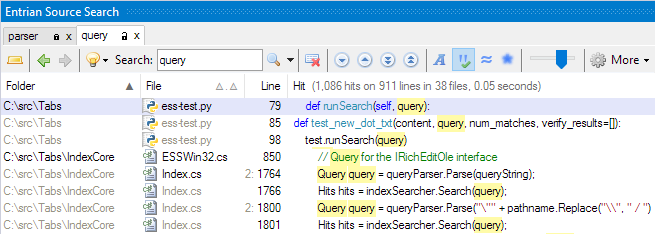
This is the Entrian Source Search window - normally you'd dock it along the bottom of Visual Studio. For full details on what all the pieces do, see the Search Window.
Searching
Entrian Source Search supports a wide range of searching and filtering options - here's a summary. To see this summary from within the Search window, hover your mouse over the Search box and it will appear in a tooltip.
| Searching: | |
| myVariable | Search for a word |
| myVariable1 myVariable2 | Search for several words (with Phrase Search turned off) |
| "int myVariable" | Search for a phrase (with Phrase Search turned off) |
| int myVariable | Search for a phrase (with Phrase Search turned on) |
| int myV* | Single-token wildcard (an asterisk next to alphanumeric characters expands to single-word matches) |
| "this * that" | Multi-token wildcard, single line (an asterisk on its own matches unlimited tokens on the same line) |
| "this *:100 that" | Multi-token wildcard, limited to 100 tokens, multi-line |
| char\* | To search for an asterisk, escape it with a backslash |
| loose:"this and that" | Search for words that are near to each other, in any order |
| loose50:"A B C" | Tune the looseness: allow gaps of 50 tokens |
| Filtering: | |
| myVar ext:cpp | Search only within *.cpp files |
| myVar dir:utils/misc | Search only within matching directories |
| 2017 -file:ChangeLog | Search all files except ChangeLogs |
| age:30m | Show only files modified in the past 30 minutes |
| -age:3d12h | Show only files not modified in the past 3.5 days |
For all the details on the syntax and options for searching and filtering, see Searching.
Keyboard shortcuts
The main keyboard shortcuts are (by default):
- Alt+= search for the word under the cursor (or the selected text if there is any).
- F8 jumps to the next hit, loading the source file into the editor.
- Shift+F8 jumps to the previous hit.
- Shift+Alt+F opens the Search box with a file: filter in place, ready to use autocomplete or wildcards to open a file by name. That's a really quick way to open any file in your source tree.
- Shift+Alt+= just activates the Search box, ready for you to type.
For a full list of all the available keyboard shortcuts, see Keyboard shortcuts.
The manual
This page only skims the surface - see the full manual for all the depth:
- The Search window
- Searching
- Multiple tabs
- Indexing
- Options
- Keyboard shortcuts
- When things go wrong
- The command line: ess.exe
Entrian Source Search makes Visual Studio faster and more
productive to use.  and try it for yourself.